

What you can build
- Press monitoring — Get an email the moment a founder, executive, or brand is named on a show, with the transcript excerpt and a summary.
- Competitive intelligence — Track when competitors are discussed across the podcast catalog without polling the API yourself.
- Booking and PR tracking — Use a speaker-appearance alert to learn when a person actually appears as a guest, not just when they’re talked about.
- Topic watch — Follow a knowledge-graph topic and surface every new episode that touches it.
Two kinds of alert
Thekind is fixed when the alert is created and decides what counts as a match.
A speaker-appearance match is reported only when the entity appears in one of the canonical appearance roles —
GUEST, PANELIST, CORRESPONDENT, AUDIENCE, or SOUNDBITE_SPEAKER (raw transcription labels like caller, listener, or reporter are normalized into these buckets). HOST is intentionally excluded: hosting the show isn’t an appearance.
How an alert is configured
Delivery frequency
delivery_cadence controls how matches turn into emails. Realtime sends one email per match; the two digest cadences accumulate matches as they’re detected and send a single bundled email on schedule.
Digest emails are bundled per alert — all of an alert’s matches in the window go into a single digest rather than one email per match, and each configured recipient receives that digest individually (recorded as one shared delivery).
Notification emails must be verified before they receive mail. In the dashboard, your own address and your organization’s members’ addresses are verified automatically; API-key callers must use an address that’s already verified for the organization. See Notification emails.
Filtering matches
filters is an optional object on every alert that narrows what gets surfaced — it applies identically to every surface the alert produces: the matches list, the realtime email, and the daily and weekly digests. Two axes (relevance, source_popularity) are applied at read/delivery time, so flipping them is fully reversible — tighten and the matches disappear from the list and emails; loosen and they return. The other two (languages, speaker_roles) gate detection itself: they’re also enforced inside the post-create historical backfill and the live matcher, so broadening either axis later won’t surface older matches that were excluded — those rows were never written.
Omit filters on create for no narrowing. All four axes default to “no filter”. On PATCH, a supplied filters object replaces the alert’s filter set wholesale (there’s no per-axis merge) — send {} to clear every filter at once, or omit filters from the patch body to leave the existing set unchanged.
How alerts flow through the system
- A match is one detected mention or appearance of a watched entity on a single episode. Matches carry the mention count, transcript excerpts, speaker roles, and an AI summary.
- A delivery records one send attempt — a single row covering all of the alert’s recipients, who are each emailed individually. A realtime delivery carries a single match; a daily or weekly digest bundles every match from its window into one delivery.
- Every delivery and match has a shareable landing page that renders the result without the recipient needing an account.
is_backfilled: true, but they never trigger an email — only matches detected after creation are delivered. See Alert results.
Endpoints
Alerts are managed through the/v1/alerts endpoints. Writes are scoped to a project; reads of a single alert, its matches, and its deliveries are addressed by the resource’s own ID.
Plan requirement
Alerts are available on the Team, Business, and Enterprise plans. On a plan that doesn’t include them, creating an alert returnsplan_does_not_support_alerts — upgrade from your .
Each plan includes a number of active alerts. When you reach the included allowance, buy an Alerts Pack add-on to raise it — further creates return add_on_required until you do. Paused alerts (is_active: false) don’t count against the allowance.
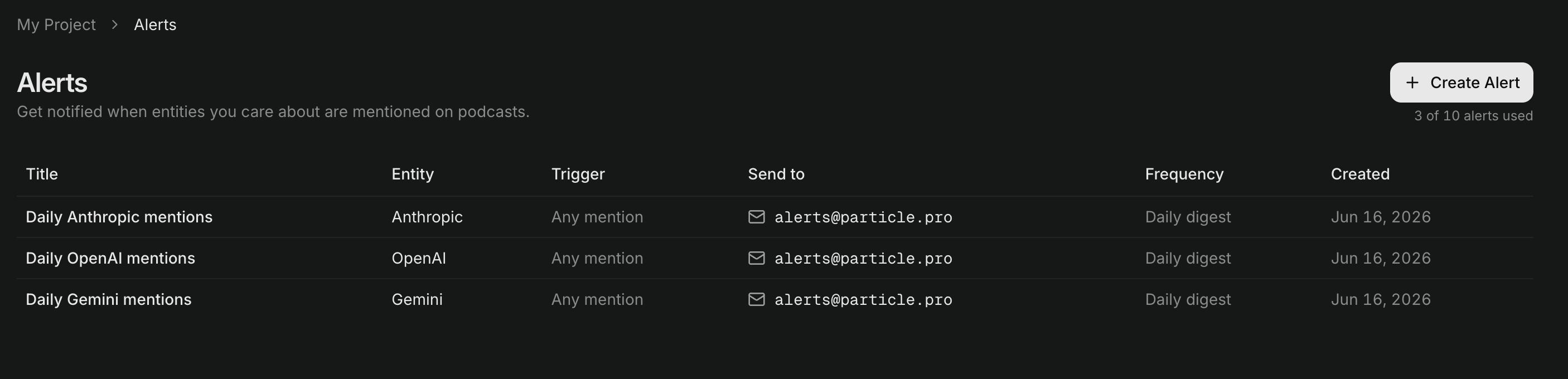
The Alerts list in the platform dashboard. The counter top-right shows alerts used against your plan's allowance.
Next steps
Create an alert
Resolve an entity, preview how often it would fire, and create the alert — from the API or the dashboard.
Alert results
Read matches and deliveries, understand the match payload, and share a result page.
Slack
Post matches to a Slack channel — connect a workspace and attach a channel.
Webhooks
Deliver matches to your own endpoint as a signed JSON POST, and verify the signature.
Authentication
Alerts CRUD works with a standard
X-API-Key, bound to the project the alert belongs to.Knowledge graph
Resolve the people, companies, and topics you want an alert to watch.